


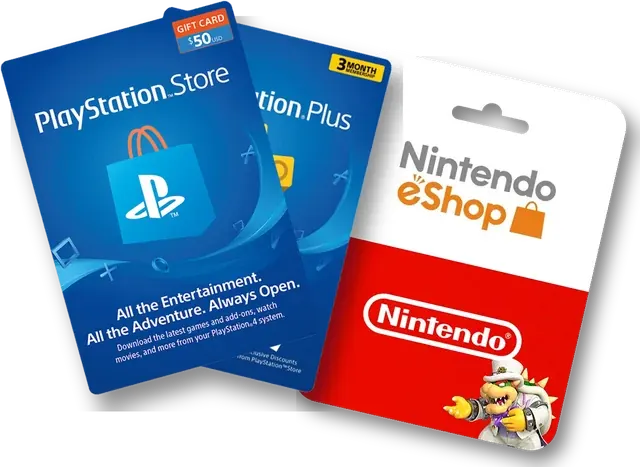




Your code, redeemed
where it belongs.
Every product we sell is a code that you redeem yourself on the platform it belongs to. This page explains how to do that, what a region restriction really means, and what to do if a code is rejected. If a product page has its own How to activate tab, follow that first — it is written for that exact item.
Pick your platform
Menu names differ slightly between client versions and consoles. On every platform you are looking for the same thing: an option called Redeem, Redeem code or Activate, usually in your account menu or in the platform’s store.
Steam
Region as listed- 1Sign in to the Steam desktop app with the account you want to own the game.
- 2Open the Games menu and choose the option to activate a product on Steam. The same thing is available in your account on the Steam website at store.steampowered.com/account/registerkey.
- 3Accept the subscriber agreement, paste the code and confirm.
- 4The title appears in your library and can be installed.
Xbox and Microsoft Store
Region as listed- 1On the console, open the Store and choose the redeem-code option, or use redeem.microsoft.com in a browser.
- 2Sign in with the Microsoft account you play on.
- 3Enter the 25-character code and confirm.
PlayStation
Strict on regions- 1On the console, open the PlayStation Store and choose the option to redeem codes.
- 2Sign in with the PlayStation Network account you play on, then enter the 12-character code.
- 3Confirm; the content is added to that account’s library.
Nintendo
Strict on regions- 1On the console, open the Nintendo eShop and select the user account you want to receive the content.
- 2Choose the option to enter or redeem a code and type the 16-character code.
- 3Confirm; the download starts or the balance is added.
Ubisoft Connect
Region as listed- 1Open the Ubisoft Connect PC client and sign in.
- 2Open the main menu and choose the option to activate a key.
- 3Paste the code and confirm; the game appears in your Ubisoft library.
EA (EA app and Origin)
Region as listed- 1Open the EA app and sign in.
- 2Open the menu and choose the redeem-code option.
- 3Enter the code and confirm.
GOG.com
Region as listed- 1Sign in on the GOG website or in GOG Galaxy.
- 2Open your account menu and choose the redeem-code option.
- 3Enter the code; the game is added to your GOG library, DRM-free.
Epic Games
Region as listed- 1Sign in to the Epic Games launcher or the Epic Games website.
- 2Open your account menu and choose the redeem-code option.
- 3Enter the code and confirm.
Battle.net, Rockstar and Riot
Region as listed- 1Battle.net — sign in to your Battle.net account in the desktop app or on the website and use the option to redeem a code in the account or gift-card section.
- 2Rockstar Games Launcher — open the launcher, sign in, and use the redeem-code option in your account settings.
- 3Riot Games — codes are entered inside the game client’s store, in the section for prepaid cards and codes.
Gift cards and subscription codes
One country’s storeAlongside game keys, the catalogue includes gift cards and subscription codes for services such as Amazon, Apple, Google Play, Netflix and Spotify. These are not redeemed on a game platform: sign in to that service’s own account and use its “redeem code” or “add gift card” page. Gift cards are usually issued for one country’s store, so the region shown on the product page matters just as much here.
What a region restriction means
Every product page shows a region. Read the region line on the product page before buying, and if you are unsure, ask us before you order rather than after you redeem — a code that has been rejected for the wrong region usually cannot be exchanged.
Global means the code has no geographic restriction.
Anything else — Europe, United States, Turkey, Argentina and so on — means the code is expected to be redeemed on an account registered in that region, and the platform may refuse it otherwise.
Some products are labelled as restricted the other way round, for example “Europe Restricted”, meaning the code works everywhere except the listed area.
If the code is rejected
Work through these in order before contacting us; it saves a round trip.
Usually a typo, or the wrong platform
Re-copy and paste the whole code. Check you are on the right platform — Steam codes and Ubisoft codes look similar but are not interchangeable.
The code’s region doesn’t match your account
The code’s region does not match your account’s country. Do not create a fake account to work around it; contact us instead.
Don’t retry — write to us straight away
Stop and write to us straight away with the order number and a screenshot of the exact message. A code reported as already used is something we take up with the supplier, and a code that was not usable is replaced or refunded under our Refund Policy.
Add-ons need the base game on the same account
Add-ons and DLC need the base game already on the same account. Check the product title and description.
Still not working?
See also: How to Buy, Shipping & Delivery and the FAQ.